


Suggestions for Efficient Transactions Against Entra ID Eventually Consistent Data
An interesting Microsoft development blog post addresses the subject of eventual consistency and how to design applications that use Entra ID data. The blog starts with “To scale reliably and remain resilient during failures, Microsoft Entra uses an eventually consistent directory model.”
The text goes on to explain how transactions happen in the Entra ID multi-region, multi-replica directory architecture. Essentially, transactions happen against local copies of the database and are then synchronized to the other database copies. At this point, the transaction is consistent everywhere across Entra ID and a request to fetch information about the affected object will receive the same information from any instance of Entra ID globally.
The bulk of the post offers suggestions about how application developers should interact with Entra ID. I’ve covered this topic in passing before, but thought it worthwhile to expand on the suggestions made in the blog with some example Microsoft Graph PowerShell SDK code.
Use Delegated Access
The first suggestion is to use delegated access when consistency is required because “delegated access may provide more predictable consistency.” This is easily done by setting the ConsistencyLevel parameter to Eventual in calls to cmdlets that fetch Entra ID data like Get-MgUser, Get-MgGroup, and Get-MgDevice: The CountVariable parameter is also passed to receive the count of objects returned by the request.
[array]$Users = Get-MgUser -Filter "country eq 'Ireland'" -ConsistencyLevel Eventual -All -CountVariable Count
Trust Write Responses
If a write operation (like creating a new group with New-MgGroup or updating a user account with Update-MgUser) doesn’t generate an error, treat the operation as complete. Don’t include the unnecessary overhead of a read to check that the write operation was successful. The PowerShell Try/Catch structure is a good way to detect errors without checking with a follow-up read:
Try {
   Update-MgUser -UserId $UserId -JobTitle "Chief Poobah" -ErrorAction Stop
   Write-Output "The update worked and the user's title was updated"
} Catch {
   Write-Output "The update failed"
}
Use Identifiers Returned for New Objects
Cmdlets that create new Entra ID objects can return a variable containing details of the new object. Use the information from the variable to display details or for further interaction with the new object instead of incurring the additional overhead of reading details from Entra ID (the read might fail if the object isn’t fully synchronized). Here’s an example of creating a new group where the $Group variable is used to receive details of the new group:
Try {
   $Group = New-MgGroup -Description "Teams Deployment Project" -DisplayName "Teams deployment project" -MailEnabled:$True -SecurityEnabled:$False -MailNickname "Teams.Deployment.Project" -GroupTypes "Unified" -ErrorAction Stop
   Write-Output ("The new team {0} was created with identifier {1}" -f $Group.displayName, $Group.Id)
} Catch {
   Write-Output "Sorry... failed to create the new group"
}
Eliminate Multi-Step Workflows
In all cases, avoid code that creates an object, reads the object to check its properties, and then updates the object properties. Instead, create the fully-populated object with a single command. If you’re used to PowerShell splatting, the technique of creating a hash table to hold property values will be second nature. This code populates two hash tables containing the password information and account properties for a new user account processed by New-MgUser to create a new fully-populated user object:
$PasswordProfile = @{}
$PasswordProfile.Add("forceChangePasswordNextSignIn", "true")
$PasswordProfile.Add("password","@TemporaryPassword123!")

$Parameters = @{}
$Parameters.Add("AccountEnabled", "true")
$Parameters.Add("OfficeLocation", "Galway")
$Parameters.Add("Department", "Business Development")
$Parameters.Add("DisplayName", "Carla Jones (BusDev)")
$Parameters.Add("State", "Connacht")
$Parameters.Add("PostalCode", "GY1H1842")
$Parameters.Add("StreetAddress", "Kennedy Center")
$Parameters.Add("City", "Galway")
$Parameters.Add('JobTitle', "Senior Development Manager")
$Parameters.Add("UserPrincipalName", "Carla.Jones@office365itpros.com")
$Parameters.Add("Mail", "Carla.Jones@office365itpros.com")
$Parameters.Add("MailNickName","Carla.Jones")
$Parameters.Add("passwordProfile", $PasswordProfile)
Try {
  $NewUser = New-MgUser -BodyParameter $Parameters
  Write-Output "New user account created for " $NewUser
} Catch {
   Write-Output "Failed to create account"
}
Deal with Transient Read Failures
Because of the eventually consistent nature of Entra ID, it’s possible that a read against a newly created or newly updated object might fail or return a property value that you don’t expect. When this happens, give Entra ID time to synchronize by including some retry logic with exponential backoff.
This is a very simple example that shows the addition of the new user account to the new group created above. The identifiers should be fine because we’re using the values returned by Entra ID, but just in case the addition fails, the catch pauses for five seconds before retrying. In most cases, five seconds should be enough!
Try {
  New-MgGroupMember -GroupId $Group.Id -DirectoryObjectId $NewUser.Id -ErrorAction Stop
  Write-Output ("User {0} added to group {1}" -f $NewUser.displayName, $Group.DisplayName)
} Catch {
  Write-Output "The update didn't work. Pausing for 5 seconds before retry"
  Start-Sleep -Seconds 5
  New-MgGroupMember -GroupId $Group.Id -DirectoryObjectId $NewUser.Id -ErrorAction Stop
}
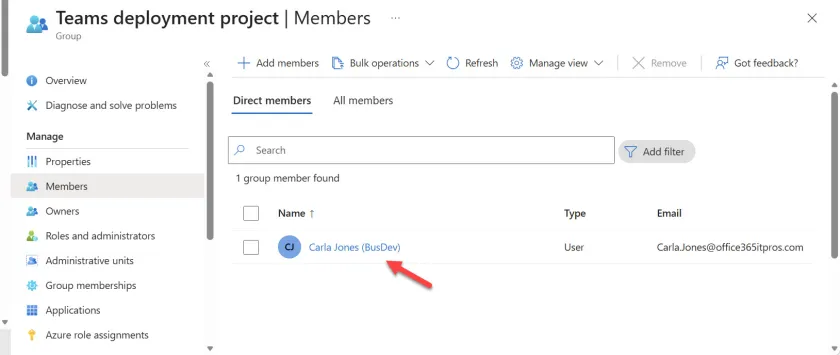
Usually, everything just works (Figure 1), but it’s always good to be prepared for a surprise.

Make Retries Idempotent
Simply, make sure that retries that attempt repeated requests don’t end up creating duplicate objects.
None of the advice given in the post is rocket science and I’m sure that people already practice these techniques when working with Entra ID through PowerShell. It’s obviously in Microsoft’s best interests for people to avoid sloppiness in scripts because better code will reduce the demand on the Entra ID service. Following the guidance will also make scripts work better, and that’s never a bad thing.
Need help to write and manage PowerShell scripts for Microsoft 365, including Azure Automation runbooks? Get a copy of the Automating Microsoft 365 with PowerShell eBook, available standalone or as part of the Office 365 for IT Pros eBook bundle.
