


Enable App Access to Selected List and List Items
In the last article about scoped Graph permissions for app access to SharePoint Online and OneDrive for Business content, I discussed how to limit app access to specific files and folders. This article considers scoped permissions to lists and list items, both covered in Microsoft’s documentation about selected permissions in OneDrive and SharePoint.
Things weren’t as straightforward as dealing with files and folders. Part of this is due to the fact that the list permissions are only supported by the beta endpoint, and part is due to some documentation errors, or perhaps my understanding of what the documentation says. Anyway, let’s see how things transpired.
Adding App Access for a List
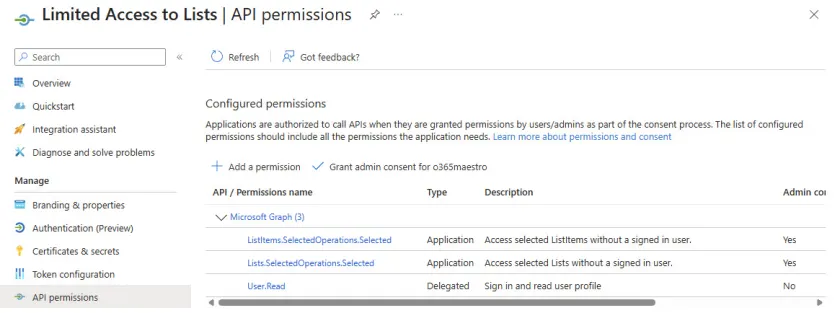
For this discussion, I use an app registration named “Limited Access to Lists” that has consent for the Lists.SelectedOperations.Selected and ListItems.SelectedOperations.Selected Graph application permissions (Figure 1). The Lists.SelectedOperations.Selected Graph permission gives an app the ability to use a scoped permission added to a list object to access the list.

To create the scoped permission, sign into an account with Sites.FullControl.All permission and populate variables with the identifiers for the application and the target site and list.
$AppId = (Get-MgApplication -Filter "displayName eq 'Limited Access to Lists").AppId

$Site = Get-MgSite -Search "https://office365itpros.sharepoint.com/sites/ITComms"

$List = Get-MgSiteList -SiteId $Site.Id -Filter "displayName eq 'Travel Requests'"
The next step is to construct the URI to post the Graph request to add the permission. As you can see, the URI points to the target list using the identifiers retrieved above. At the time of writing, only the beta version of the Lists endpoint supports the assignment of scoped permissions.
$Uri = ("https://graph.microsoft.com/beta/sites/{0}/lists/{1}/permissions" -f $Site.Id, $List.Id)
The request body connects the app to the permission and is included in the POST request to add the scoped permission. Like the request bodies used to assign permissions to files and folders, the grantedTo property contains details of the app rather than the grantedToV2 property used by scoped site permission assignments:
$Requestbody = @{
  roles = @("write")   # or "read", "owner", "fullcontrol"
  grantedTo = @{
    application = @{
      id = $AppId      # Application (client) ID GUID
    }
  }
}
Invoke-MgGraphRequest -Uri $Uri -Method Post -Body $RequestBody
If SharePoint Online accepts the command to create the new permission, it responds with details of the permission. To check that everything’s OK, you can use the same URI to retrieve the permissions for the list:
$Permissions = Invoke-MgGraphRequest -Uri $Uri -Method Get | Select-Object -ExpandProperty Value
You’ll find a write permission in the list of permissions. By examining the grantedToV2 property, we can see that the permission is granted to an application with the correct app identifier.
id                             aTowaS50fG1zLnNwLmV4dHw4NmEyMzQ1My05YWY0LTRmZDItYjEyYi02ODZjZWE3MzE2MDlAYjY2MjMxM2YtMTRmYy00M2EyLTlhN2EtZDJlMjdmNGYzNDc4
grantedToV2                    {[application, System.Collections.Hashtable]}
roles                          {write}

$Permissions[-1].grantedToV2

Name                           Value
----                           -----
application                    {[id, 86a23453-9af4-4fd2-b12b-686cea731609]}
Using Scoped App Access for a List
With the permission in place, the app can sign in access the list. The app doesn’t have consent to run Get-MgSite to enumerate or search for sites, so the site identifier might need to be hard coded. As you can see, the app can see the full set of lists in the site, including the lists used for document libraries:
$SiteId = "office365itpros.sharepoint.com,2b61a408-f05d-45b8-9d68-fb020131f86c,51ede316-f0de-4621-b315-39ce1d91d18c"

Get-MgSiteList -SiteId $SiteId | Format-Table DisplayName, Id

DisplayName             Id
-----------             --
Web Template Extensions 5feb3e71-34bb-4d87-b112-032a4e0282c7
Travel requests         04c4ef13-5245-4df1-9192-14bdca47bac3
Documents               1553d797-3e0c-4645-ac4e-b2562a2c39c5
Although the app can see the other lists, it only has permission to read items from the Travel Requests list. Here’s the code for the app to retrieve the list items:
$List = Get-MgSiteList -SiteId $SiteId -filter "displayName eq 'Travel Requests'" [array]$Data = Get-MgSiteListItem -ListId $List.Id -SiteId $SiteId
Using the techniques explained in this article, this code fetches the list items and builds a PowerShell list from the information extracted from each item:
[array]$ListItems = Get-MgSiteListItem -ListId $List.Id -SiteId $SiteId -ExpandProperty "fields(`$select=id,Linktitle,requester,reasonfortravel,destination)" -PageSize 500 -All
$ItemData = [System.Collections.Generic.List[Object]]::new()
ForEach ($Item in $ListItems.fields) {
    $FullName = ($Item.AdditionalProperties.FullName)
    $ReportLine = [PSCustomObject] @{
        Id                  = $Item.Id
        'Trip Title'        = $Item.additionalProperties.LinkTitle
        'Reason for travel' = $Item.AdditionalProperties.ReasonForTravel
        Requester           = $Item.AdditionalProperties.Requester
        Destination         = $Item.AdditionalProperties.Destination.displayName
    }
    $ItemData.Add($ReportLine)
}
After processing, the details of an item look like this:
Id                : 1
Trip Title        : Microsoft 365 Community Conference 2026
Reason for travel : Networking and learning
Requester         : Adele Vance
Destination       : Orlando
Grant App Access for a List Item
Getting even more granular, we can use much the same technique to give permission to an app for one or more items in a list. The app must have consent for the ListItems.SelectedOperations.Selected Graph permission to use item-level access.
To assign permission for a list item, the URI is built from the site and list identifiers as before with the inclusion of the list item identifier (simple integers like 1, 2, 3, and so on). Granting access is done with the same kind of POST request and request body.
$Uri = ("https://graph.microsoft.com/beta/sites/{0}/lists/{1}/items/{2}/permissions" -f $Site.Id, $List.Id, $ListItemId)
Invoke-MgGraphRequest -Uri $Uri -Method Post -Body $RequestBody
With an item-level permission in place, the app is limited to interacting with that item. All other items in the list are invisible.
Granular Access for Lists and Items
In summary, the delegated scope permissions for lists allow tenants to grant app granular levels of access to list and list items. Consider using this feature to restrict apps to accessing just the required information instead of having unfettered access to all the lists and list items in a site.
Need help to write and manage PowerShell scripts for Microsoft 365, including Azure Automation runbooks? Get a copy of the Automating Microsoft 365 with PowerShell eBook, available standalone or as part of the Office 365 for IT Pros eBook bundle.
