


File-Level Restore Rolls Out in April 2026
When I discussed the announcements made by Microsoft around SharePoint’s 25th anniversary, I mentioned the advent of departmental billing for Microsoft 365 Backup. Buried deep in the Technical Community post about that topic was mention of file-level restore as an upcoming feature.
Two days later, Microsoft revealed details in message center notification MC1245216 (Microsoft 365 roadmap item 464991) and said that file-level restore is in public preview now and should roll out to general availability in late April 2026 with worldwide deployment finishing in early May 2026.
The Value of Restoring Individual Files or Folders
File-level restore means that tenants can restore individual files or folders from a restore point instead of restoring a complete site. Restoring a complete site to a point in time might be necessary to fix something like a malware attack; restoring individual files deals with situations like users deleting files in sites that don’t have a retention policy and only discover the issue after SharePoint empties the deleted file from the site recycle bin. Microsoft 365 Backup can restore data back to the last available backup point (up to one year).
File Restore Depends on Versions
While Microsoft doesn’t say how restoring individual files work, I’m pretty sure that restoration depends on file versions. As people work on files in SharePoint Online and OneDrive for Business, file versions are generated to make sure that work is not lost and to allow any user with edit access to a document library to restore a file from a previous version.
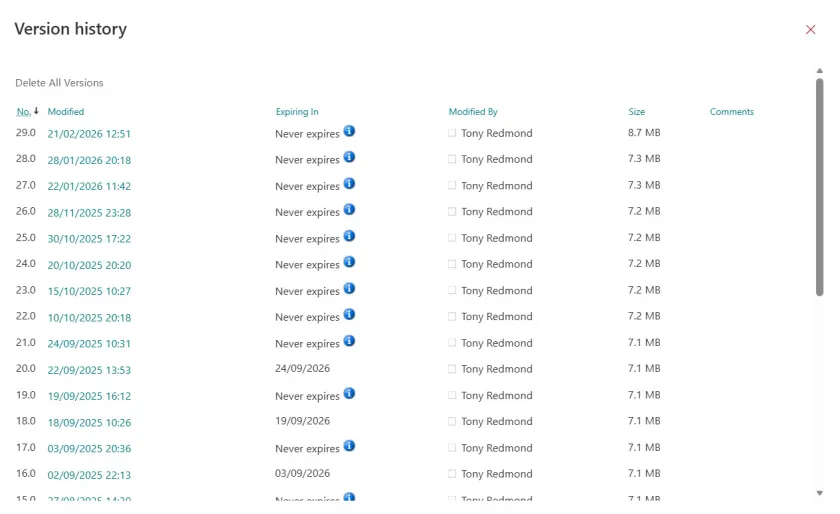
Figure 1 shows the available versions of a file stored in SharePoint Online. The tenant uses intelligent versioning, meaning that SharePoint Online only keeps the versions that it thinks necessary to support data recovery. Versions containing inconsequential changes are assigned a retention date at which SharePoint will discard the versions. Users can restore any previous version to become the current version of the file.

When you think about it, performing a file level restore from a backup mimics what happens when a user selects a version for a file and restores it. I am sure that technical differences exist in terms of the precise implementation, but the concept seems much the same.
Microsoft 365 Backup and PowerShell
I wondered if some extra information could be extracted using a Graph API and checked the FAQ for Microsoft 365 Backup. The documentation asserts that PowerShell cmdlets are available to manage backup and restore with Microsoft 365 Backup. I guess that’s technically correct in that the Microsoft Graph PowerShell SDK includes a set of cmdlets in the Microsoft.Graph.BackupRestore module. However, many of the cmdlets (and the underlying Graph API requests) cannot be run interactively because they are intended for use with a backup controller application.
A backup controller application controls the storage and billing for Microsoft 365 Backup. Only a single application can serve this purpose in a tenant. Third-party backup products based on Microsoft 365 Backup storage have controller apps to do the job, but the Microsoft Graph PowerShell SDK is not a controller app.
In other words, if you have an app that’s registered to be the backup controller application for the tenant, it can run the cmdlets, but you can’t run the same cmdlets in an interactive (delegated) session. Attempts to run the cmdlets will get a 403 Forbidden error because you’re using the wrong app (see the warning in the API documentation).
Some cmdlets do work. For example, you can discover the Microsoft 365 Backup policies that are currently defined with the Get-MgSolutionBackupRestoreProtectionPolicy cmdlet:
Get-MgSolutionBackupRestoreProtectionPolicy

Id                                   CreatedDateTime     DisplayName       IsEnabled LastModifiedDateTime Status
--                                   ---------------     -----------       --------- -------------------- ------
f1c5125c-1189-4902-8722-0c8b498085dc 21/01/2024 14:33:12 SharePoint policy True      18/01/2026 05:52:16  active
f39ae845-b2f8-4419-8b41-c5dd9cfed5cb 21/01/2024 14:34:11 Exchange policy   True      18/01/2026 05:49:43  active
2c22df36-6609-4aba-a519-b8633c5f630e 21/01/2024 14:34:47 OneDrive policy   True      18/01/2026 05:52:17  active
To find more information about a policy, run the cmdlet for the selected policy and make sure to fetch the information you want to see. In this case, the retention settings.
$Data = Get-MgSolutionBackupRestoreProtectionPolicy -ProtectionPolicyBaseId f1c5125c-1189-4902-8722-0c8b498085dc -Property Id, CreatedDateTime, DisplayName, RetentionSettings
$Data.RetentionSettings

Interval
--------
R/PT10M
R/P1W
R/PT10M is an ISO 8601 repeating interval. In this case, it means that backups are taken every ten minutes. R/P1W is a one-week interval that I assume refers to the interval that Microsoft 365 Backup uses to keep backups for one year after creation (see details on Figure 2).

At least some PowerShell cmdlets work without a special app! I look forward to testing file level restore the next time I do something stupid…
Learn about managing SharePoint Online and the rest of the Microsoft 365 ecosystem by subscribing to the Office 365 for IT Pros eBook. Use our experience to understand what’s important and how best to protect your tenant.
