


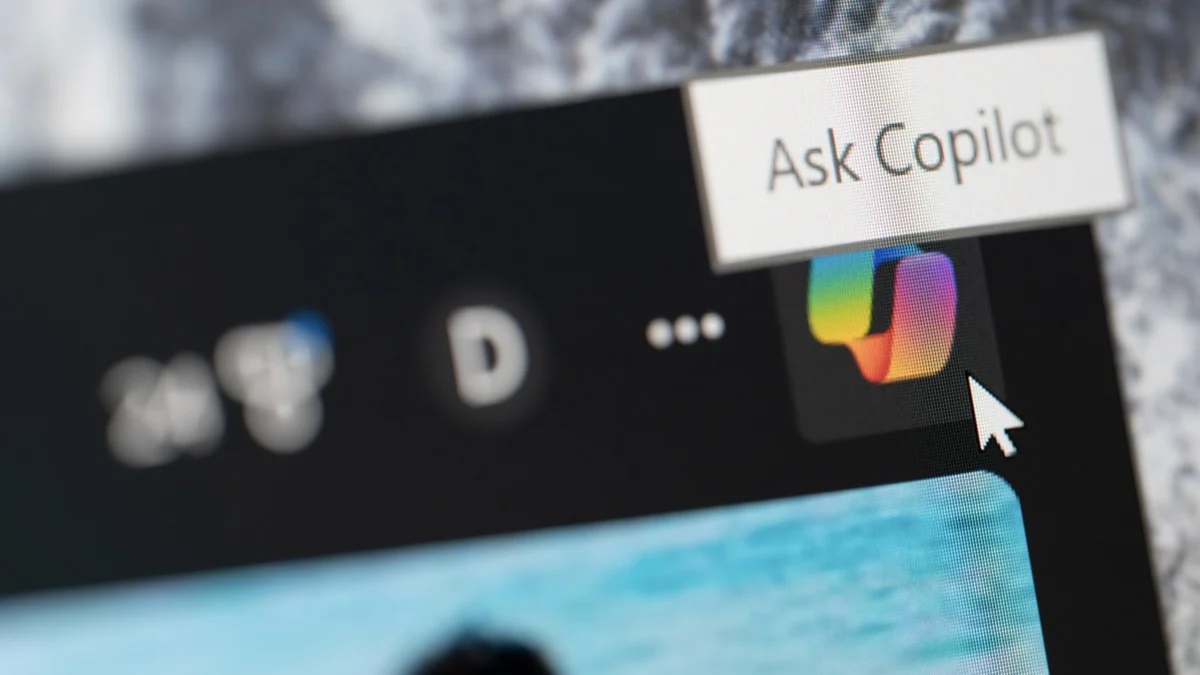
After years of integrating (read: shoving) Copilot into as many Windows apps as possible, Microsoft seems to have made a shocking discovery: users don’t want Copilot crammed into as many Windows apps as possible. On Friday, Pavan Davuluri, Microsoft’s President of Windows & Devices, published a post on the official Windows Blog, walking readers through changes the company was making to Windows in response to user feedback. While Davuluri stopped short of saying the words “all this AI was a mistake,” he did say, “What came through [from user feedback] was the voice of people who care deeply about Windows and want it to be better.” So, now, we have a bunch of changes that, hopefully, make Windows better.
Copilot is taking a step back in future versions of Windows 11
Chief among those changes is an AI regression. In a bullet point titled “Integrating AI where it’s most meaningful, with craft and focus,” Davuluri says that Microsoft is going to be “more intentional” about where and how it puts Copilot throughout the operating system. The goal going forward will be on experiences that are “genuinely useful and well-crafted.” Notably, Microsoft is now “reducing unnecessary Copilot entry points.” While more changes could come in the future, the omissions start with Snipping Tool, Photos, Widgets, and Notepad. Davuluri doesn’t say how much Microsoft is pulling back Copilot from these apps, but with any luck, the company will at least make AI features a bit less prominent.
This first round of changes might not be perfect, but it does seem to address the core complaints users have had about Copilot in Windows 11. Take a look at Windows and technology forums like Reddit, and you’ll see plenty of criticisms here. This thread, for example, is full of them: One user posts “I hate the process by which they are cramming it into every single tool, changing it on an almost daily basis and leaving most of the features on by default,” while another says “This reminds me of Windows 8, but on steroids.” One even tried to use it in a technical way, to no avail: “I [set up] a Copilot agent as a supplemental training resource and it has a mind of its own. I give it instructions to not do something and it just does the opposite.”
While I’m sure there are Copilot features that some users find useful, the fact is that most of these functions just aren’t necessary to do the things people want to do with their machines. If they were, Microsoft probably wouldn’t need to cram Copilot into as many different corners of the OS as possible, to prove to the world (or investors) that it was taking AI seriously. The company made a dedicated Copilot key for PCs, and even went to extreme lengths to trick people into using Copilot. If you have to trick customers into using your product, that product probably isn’t worth using.
Other changes coming to Windows 11
Too much Copilot isn’t the only complaint that users have about Windows 11. In fact, people have been complaining about Windows 11 since its launch, well before the generative AI boon that kicked off in late 2022. As such, Davuluri’s post is full of plans for improving Windows 11 for the better, supposedly in direct response to user feedback.
What do you think so far?
That includes changes to taskbar customization, including the ability to move the taskbar to the top or to the sides of your screen. File Explorer will also launch faster, with reduced flicker and smoother navigation. Widgets will also be “quieter” by default, with new controls for when they appear. Updates are another major Windows 11 pain point which are getting addressed this year. Soon, you’ll be able to skip updates when setting up a new device so you can start using it faster. You’ll also be able to restart or shut down your PC without having to update, and you can pause updates for longer, if you don’t feel like installing the latest software version.
Windows Insiders will also note some changes: Davuluri says that Microsoft will make it easier to navigate the program, with clearer descriptions for each channel (so you know what you’re signing up to test), easier access to new features (the thing most Insiders are there to test), higher quality updates, and more transparency into how user feedback impacts future Windows builds. To that point, the general Feedback Hub is getting redesigned, so Insiders can share their feedback (and see other users’ feedback) easier.
You can read Davuluri’s full post to see all the details on Microsoft’s plans for Windows 11, but, in my view, this is all a good sign. Microsoft seems to understand that its current OS is too busy and in your face, whether that involves its AI or its other features. By toning down the design across the board, Windows could be an OS that gives users more control over how it works and responds—which is really what it should have been all along.
