Close Menu
Scroll Tonic
  • Home
  • Smart Gadgets
  • AI & Daily Tools
  • Digital Well-Being
  • Home Office Setup
  • Productivity Apps

Subscribe to Updates

Stay updated with Smart Gadgets, AI tools, productivity apps, digital well-being tips, and smart home office ideas.

What's Hot

Medtronic says ShinyHunters hackers stole around 9 million medical records in latest attack

Why Separating the Personal from the Professional Has a Cognitive Cost

GPT 5.5 vs Opus 4.7: Which is the Best AI Model Today?

Facebook X (Twitter) Instagram
Scroll Tonic
  • Home
  • Smart Gadgets
  • AI & Daily Tools
  • Digital Well-Being
  • Home Office Setup
  • Productivity Apps
Scroll Tonic
You are at:Home»Productivity Apps»How I Use My iPhone’s Focus Modes to Stop Getting Distracted at the Gym
Productivity Apps

How I Use My iPhone’s Focus Modes to Stop Getting Distracted at the Gym

team_scrolltonicBy team_scrolltonicMarch 10, 2026023 Mins Read
Share Facebook Twitter Pinterest LinkedIn Tumblr Email
How I Use My iPhone's Focus Modes to Stop Getting Distracted at the Gym
Share
Facebook Twitter LinkedIn Pinterest Email


There’s a stereotype of the phone-obsessed gym rat hogging equipment while they “just sit there and scroll on their phone.” Excuse me, I am logging my sets and trimming my training videos and, um, scrolling Reddit, and yeah I kind of got sucked into TikTok somehow? And there’s a work email, crap, it could wait until after but I’m really curious what it says. Just a sec while I open it…

Yeah, I’m not the only one who can get a bit distracted during a training session. You’re probably doing it too. So I’ve always loved this tip from powerlifting coach Claire Zai about setting a “focus” on your phone for when you’re working out.

How your phone can actually help you focus during a workout

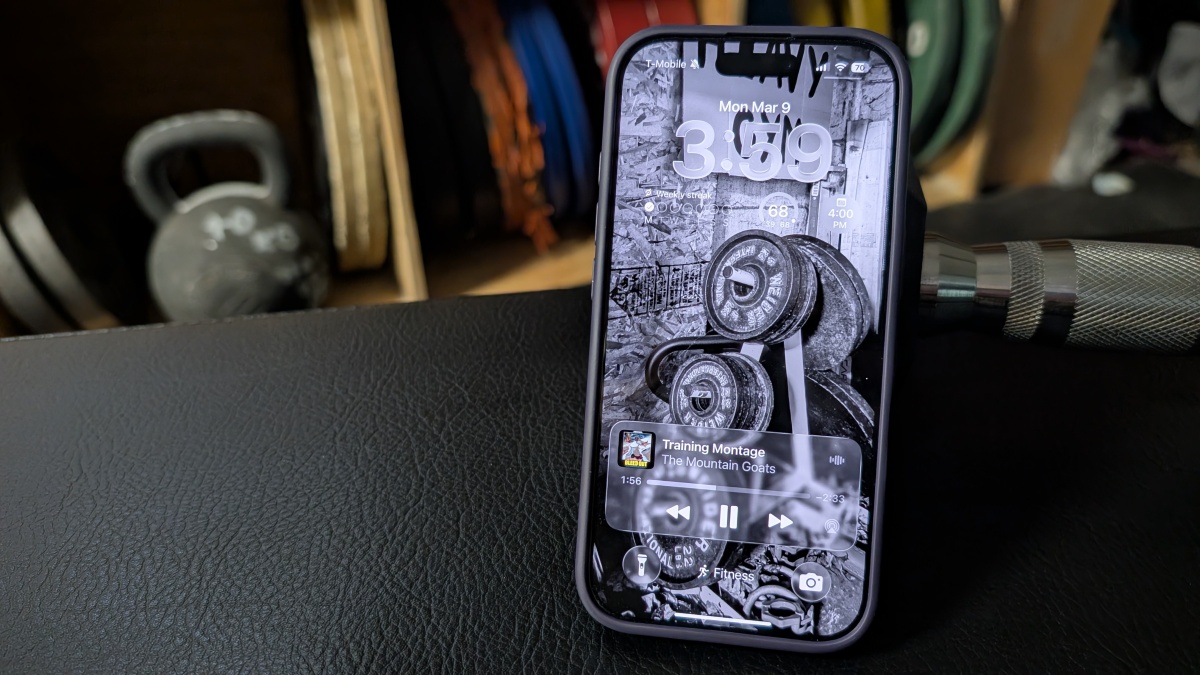
Your phone probably has a focus mode feature. I’ll demonstrate with my iPhone, but Android has this as well. (Look for “modes” in your control panel). Create a fitness mode, and either set appropriate triggers or simply keep it available to turn on manually when you’re working out. Here’s more on how to set up focus modes on iOS.

With a focus mode, you can:

  • Only have certain apps on your home screen (you’ll choose ones that are fitness-related, of course)

  • Silence notifications from work or social apps (you’ll get those notifications when you exit the focus)

  • Set up a wallpaper with something helpful or inspirational, like a list of your goals or a motivational quote

  • Add widgets that you’ll find useful during your workout

Focus mode screenshots


Credit: Beth Skwarecki

Here’s one example, above. I have a widget that lets me start my most common Apple Watch workouts, one for my recent YouTube Music playlists, and one for commonly used interval timers. I also have icons for some of my commonly used fitness apps, and a calculator for when I need to find percentages for certain workouts. I chose a photo of weights for my wallpaper to remind myself that I’m in fitness mode.


What do you think so far?

Fitness Mode lock screen with goals on it, and the matching home screen.


Credit: Beth Skwarecki

Here’s another one I used to use, which is a bit more inspirational. I had a list of goals on the cover of my training journal; the lock screen here has a digital version. On the home screen, above the apps, I have a widget from the Countdown app telling me how many days until my next big competition.

You can trigger the fitness mode to turn on anytime you start a workout, or at a certain time or location—say, when you arrive at the gym. Or you can just start it from Control Center (swipe down from the top right corner of your phone) and tell your phone to keep it on for one hour, for the duration of your current calendar event, or until you turn it off. And now you have everything you need to get your workout done, without the distractions.

Distracted Focus Gym iPhones Modes Stop
Share. Facebook Twitter Pinterest LinkedIn Tumblr Email
Previous ArticleTop 7 Free Anthropic AI Courses with Certificates
Next Article The best robot vacuums on a budget for 2026
team_scrolltonic
  • Website

Related Posts

Why Separating the Personal from the Professional Has a Cognitive Cost

April 28, 2026

These Ryobi Tools Are up to 60% Off Right Now

April 27, 2026

X Now Has Its Own Chat App

April 26, 2026
Add A Comment
Leave A Reply Cancel Reply

Top Posts

Must-Have AI Tools for Work and Personal Productivity

February 9, 2026736 Views

Best AI Daily Tools for Notes and Task Planning

January 25, 2026730 Views

Punkt Has a New Smartphone for People Who Hate Smartphones

January 5, 2026730 Views
Stay In Touch
  • Facebook
  • Pinterest

Subscribe to Updates

Stay updated with Smart Gadgets, AI tools, productivity apps, digital well-being tips, and smart home office ideas.

Keep Scrolling. Stay Refreshed. Live Smart.
A modern digital lifestyle blog simplifying tech for everyday productivity and well-being.

Categories
  • AI & Daily Tools
  • Digital Well-Being
  • Home Office Setup
  • Productivity Apps
  • Smart Gadgets
  • Uncategorized
QUick Links
  • #11254 (no title)
  • About Us
  • Contact Us
  • Disclaimer
  • Privacy Policy
  • Terms & Conditions

© 2026 Scroll Tonic | Keep Scrolling. Stay Refreshed. Live Smart.

Type above and press Enter to search. Press Esc to cancel.